
How To Setup A Custom Email Signature In Apple Mail
Changing Your Email Signature In Apple Mail
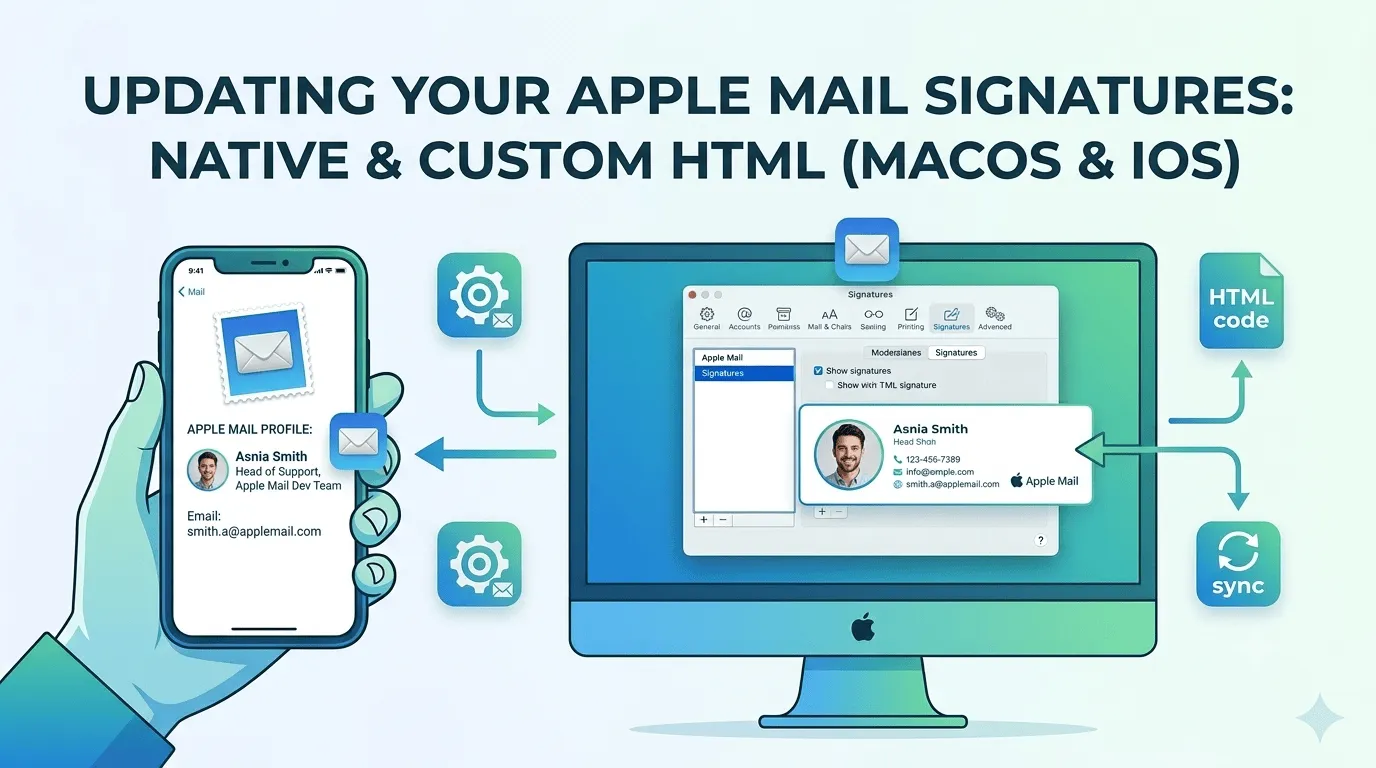
Updating your email signature is simple in some email clients and more difficult in others. Apple Mail is one that's on the more difficult side, especially if you want to implement a custom HTML signature. This article gives you step-by-step instructions for creating an email signature in Apple Mail, and installing a fully custom HTML based signature. Tailnote also offers automatic installation of Apple Mail signatures to any subscribers.
Why a Well-Designed Email Signature Matters
An effective email signature does more than list contact details. It reinforces your brand identity. Clean signatures convey professionalism.
Cluttered ones lead to confusion. They diminish trust. Every email is an opportunity to represent your brand effectively.
Key Elements of an Effective Email Signature
The best signatures balance clarity and brand representation. Include your name, title, and relevant contact information. Keep images and lengthy disclaimers to a minimum.
Consistency in branding is crucial. Essential information ensures clear communication.
Overcoming Signature Design Challenges
Designing email signatures can be tricky. They may appear differently on various devices. Mobile users often have limited customization options.
Keep your signature adaptable. Always double-check links to ensure they direct recipients correctly.
Setting Up Signatures on Apple Mail for Desktop
- Open Apple Mail.
- Go to Mail > Preferences.
- Select the Signatures tab.
- Choose your email account or create a new signature.
- Click the + button to add your signature content.
- Use formatting tools to adjust font styles, sizes, and colors.
- Insert images and links as desired.
- Resize images before inserting them to avoid formatting issues.
Setting Up Signatures on Apple Mail for Mobile
- Navigate to Settings > Mail > Signature.
- Choose the account for which you want to set the signature.
- Enter your desired signature text.
Setting Up Custom HTML Signatures on Apple Mail (Desktop Only)
- Open Apple Mail settings: Launch Apple Mail → Click 'Mail' menu → Select 'Settings' (or Preferences in older versions).
- Navigate to the 'Signatures' tab: Click the '+' button to create a new signature.
- Configure a placeholder signature: Name your signature (e.g., 'Professional HTML Signature'), type temporary placeholder text (e.g., 'PLACEHOLDER').
- Apply your signature: Drag your signature to the desired email account in the left column and set as the default under 'Choose Signature' dropdown.
- Save and exit Apple Mail: Close the Settings window and quit Apple Mail completely (CMD+Q).
- Access the Mail library: Open Finder, then click Go → Go to Folder.
- Navigate to the signatures folder: Type '~/Library/Mail' and click the 'Go' button.
- Locate the latest version folder: Open the folder starting with 'V' followed by the highest number (e.g., V10, V11).
- Enter the 'MailData' folder.
- Open the 'Signatures' folder.
- Identify your signature file: Sort by 'Date Modified' to see the newest files and look for the file ending in .mailsignature.
- Edit the signature file: Right-click the .mailsignature file and select 'Open With' → 'TextEdit'.
- Insert HTML signature: Open your HTML signature code in a separate TextEdit window.
- Replace body content: In the .mailsignature file, locate the tag and select everything from to to replace with your HTML signature code.
- Confirm changes: After replacing the text, your signature should look like this.
- Save the file: Use CMD+S to save.
- Lock the file: Right-click your signature file → 'Get Info'.
- Check the 'Locked' checkbox: This prevents Apple Mail from overwriting your HTML.
- Verify results: Open Apple Mail and navigate back to Signatures to verify the signature looks the way you want.
Signature Setup Insights
Can I Add Images to My Apple Mail Signature?
Yes, on desktop you can add images by dragging them into the signature editing area. However, mobile users cannot include images in their signatures.
Can I Have Different Signatures for Multiple Accounts?
Absolutely, you can create distinct signatures for each email account on both desktop and mobile versions of Apple Mail.
What Formatting Options Are Available for Apple Mail Signatures?
On desktop, you have access to various formatting options, including font styles, sizes, colors, and the ability to insert links and images. Mobile formatting, however, is limited to basic styles like bold and italic.
Your email signature is not just an endnote. It’s a chance to reinforce your brand with every message you send. If you’re looking for inspiration, our custom email signature options can provide guidance.
Crafting your signature is about more than aesthetics; it’s about clarity and consistency. If you have questions, our resources can help you navigate the nuances of email branding. Tailnote can assist you in making the most of every email interaction with our content promotion blocks.
For teams looking to get started, explore our free plan for insights on signature best practices, deliverability guides, and much more.
Tailnote can help you navigate the nuances of email branding. If you have questions, our resources are available to assist you in optimizing your email interactions.
Newsletter
Email branding tips for small teams
Signature best practices, deliverability guides, and product updates — no spam.
This site is protected by reCAPTCHA and the Google Privacy Policy and Terms of Service apply.

Tailnote Team
Email branding & deliverability
Practical guides on email signatures, deliverability, and branded outbound email for solo founders and small teams.
Related reading
More guides on email signatures, deliverability, and team branding.
How to Change Your Email Signature in Outlook (Desktop, Web, and Mobile)
Whether you are updating your phone number, adding a new job title, or creating a more professional signature for your business, knowing how to change your Outlook email signature is an important skill.
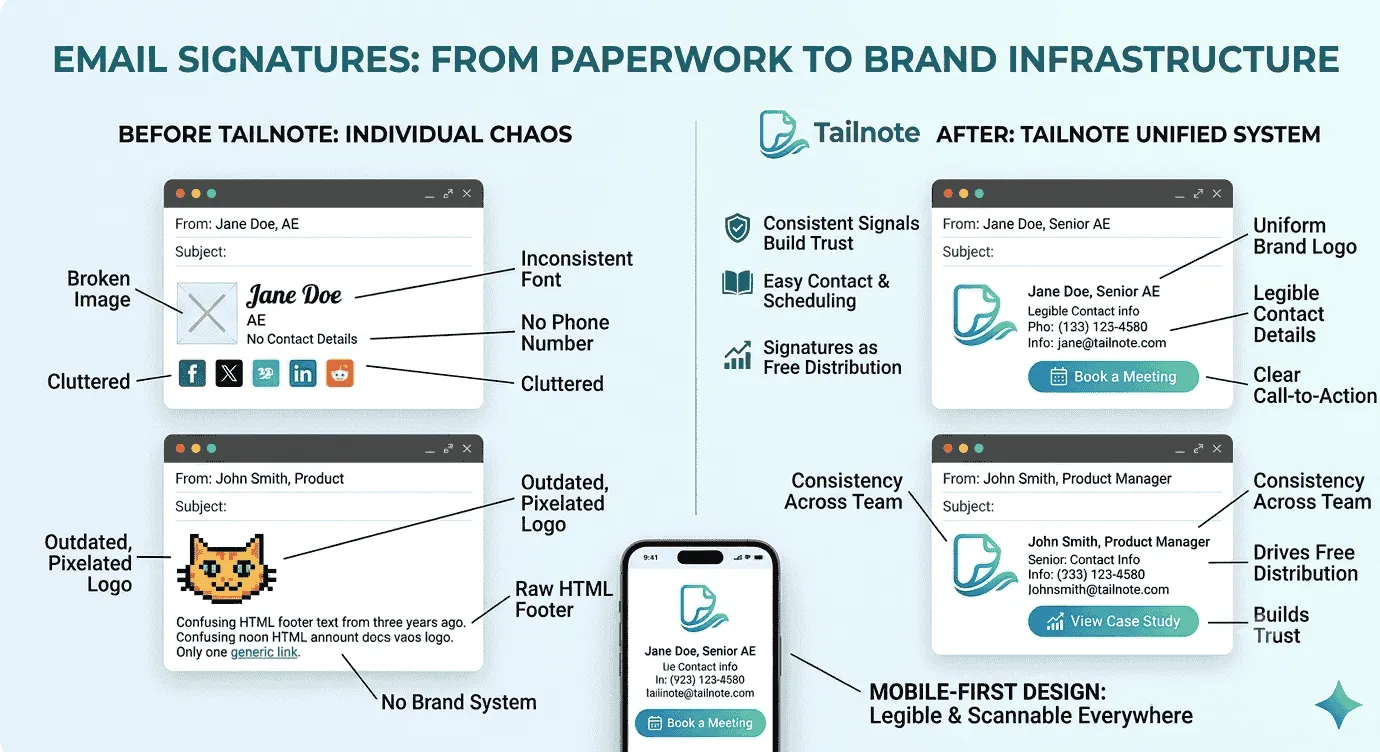
Why Email Signatures Matter More Than Most Teams Think
Every email is a tiny piece of your brand. It is a first impression, a trust signal, and sometimes the last thing someone reads before they decide whether to click, reply, or ignore you. Learn why email signatures matter more than you might think

The Tailnote Story
The story of how Tailnote came to be. From client frustrations to real-world validation and the struggles of building for legacy email clients.