
How to Change Your Email Signature in Outlook (Desktop, Web, and Mobile)
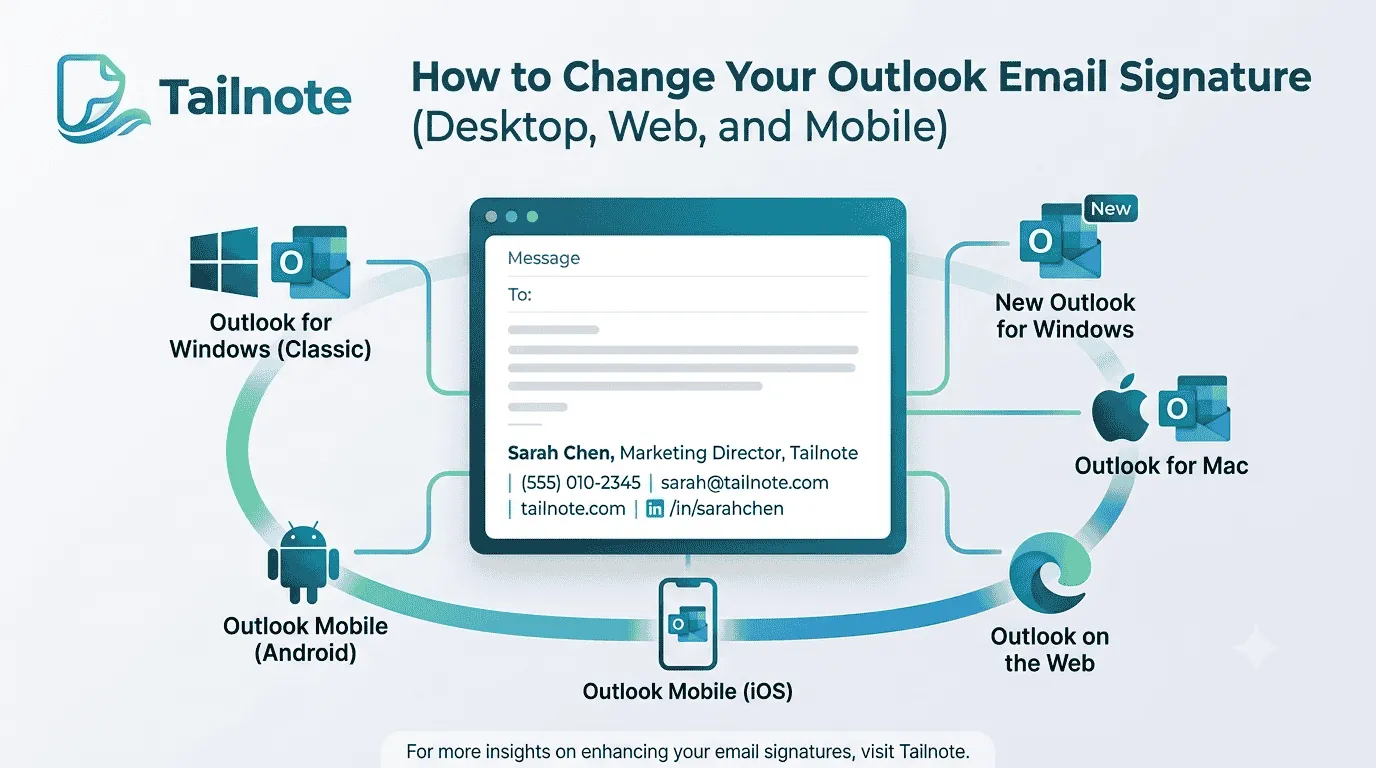
Introduction
Email signatures are an essential aspect of professional communication. They do more than just wrap up your messages; they convey your personal or company brand. Different versions of Outlook handle signatures in various ways, which can affect their appearance and management. Grasping these nuances is key to maintaining a cohesive brand image. Consider using an email signature that aligns with your branding goals.
Why Your Outlook Signature Matters
Your Outlook signature serves several important purposes:
- It reinforces your personal or company brand.
- It makes it easy for recipients to contact you.
- It effectively promotes your products or services.
- It builds trust and credibility with each communication.
Before You Start: What Makes a Good Email Signature?
A well-crafted email signature includes vital elements that reflect your brand. Here are some important considerations:
- Include your name, title, and contact information.
- Add your company logo to enhance brand recognition.
- Keep it simple and effective, steering clear of clutter.
- Ensure alignment with your overall branding strategy.
- Consider including social media links to engage with your audience.
Best Practices for Outlook Email Signatures
To improve the effectiveness of your email signatures, keep these best practices in mind:
- Keep signatures concise, focusing on essential information.
- Ensure your signature is mobile-friendly, as many emails are read on mobile devices.
- Maintain consistency across team signatures to strengthen brand identity.
- Regularly update signatures to reflect any changes in contact details or branding.
Frequently Asked Questions
Here are some common questions about Outlook signatures:
- Can I have multiple signatures in Outlook?
- Can I use different signatures for replies?
- Can I add images to my Outlook signature?
- Why doesn't my Outlook mobile signature match my desktop signature?
- Can my company manage signatures for everyone?
How to Change Your Email Signature in Outlook for Windows
- Open Outlook.
- Launch Outlook and click: File → Options.
- Open Signature Settings.
- Select: Mail → Signatures.
- Create or Edit a Signature.
- You can: Create a new signature, Edit an existing signature, Delete old signatures. To create a new one: Click New, Enter a name, Click OK.
- Add Signature Content.
- In the editor, enter: Name, Title, Contact details, Website links. You can also: Change fonts, Add hyperlinks, Insert images, Add logos.
- Choose Default Signatures.
- Select your preferences under: Choose default signature.
- Save Changes.
- Click: OK.
How to Change Your Signature in New Outlook for Windows
- Open Settings.
- Click: Settings (gear icon) → Accounts → Signatures.
- Create or Edit a Signature.
- Here you can: Create multiple signatures, Edit existing signatures, Set defaults.
- Assign Defaults.
- Choose which signature should appear for: New emails, Replies, Forwards.
- Save your changes.
How to Change Your Signature in Outlook on the Web
- Open Outlook.
- Go to Outlook in your browser and sign in.
- Open Settings.
- Click the gear icon in the upper-right corner.
- Then select: View all Outlook settings.
- Navigate to Email Signatures.
- Select: Mail → Compose and Reply.
- Update Your Signature.
- Add or edit: Text, Images, Hyperlinks, Formatting.
- You can also choose: Automatically include on new messages, Automatically include on replies and forwards.
- Save.
- Click: Save.
How to Change Your Signature in Outlook on Mac
- Open Outlook.
- Launch Outlook.
- Open Preferences.
- Select: Outlook → Settings.
- Then choose: Signatures.
- Create a New Signature.
- Click: + (Add Signature).
- Give it a name.
- Edit Signature Content.
- Enter your signature details.
- Set Default Signatures.
- Choose: New messages, Replies and forwards.
- Save your changes.
How to Change Your Signature in Outlook on iPhone
- Open Outlook App.
- Launch Outlook on your iPhone.
- Open Settings.
- Tap: Profile Icon → Settings Gear.
- Select Signature.
- Scroll down and tap: Signature.
- Edit Your Signature.
- Delete the default signature and replace it with your own information.
- Save.
How to Change Your Signature in Outlook on Android
- Open Outlook App.
- Launch Outlook.
- Open Settings.
- Tap: Profile Picture → Settings.
- Tap Signature.
- Locate: Signature.
- Update Content.
- Replace the default signature with your preferred version.
- Save changes.
Final Thoughts
Changing your email signature can be simple with clear guidance. Focus on clarity and consistency in your signature design to accurately represent your brand. For additional resources, consider exploring our email signature template options. Tailnote assists you in making the most of every email interaction.
For further insights on managing your email marketing, visit our dedicated page.
Newsletter
Email branding tips for small teams
Signature best practices, deliverability guides, and product updates — no spam.
This site is protected by reCAPTCHA and the Google Privacy Policy and Terms of Service apply.

Tailnote Team
Email branding & deliverability
Practical guides on email signatures, deliverability, and branded outbound email for solo founders and small teams.
Related reading
More guides on email signatures, deliverability, and team branding.
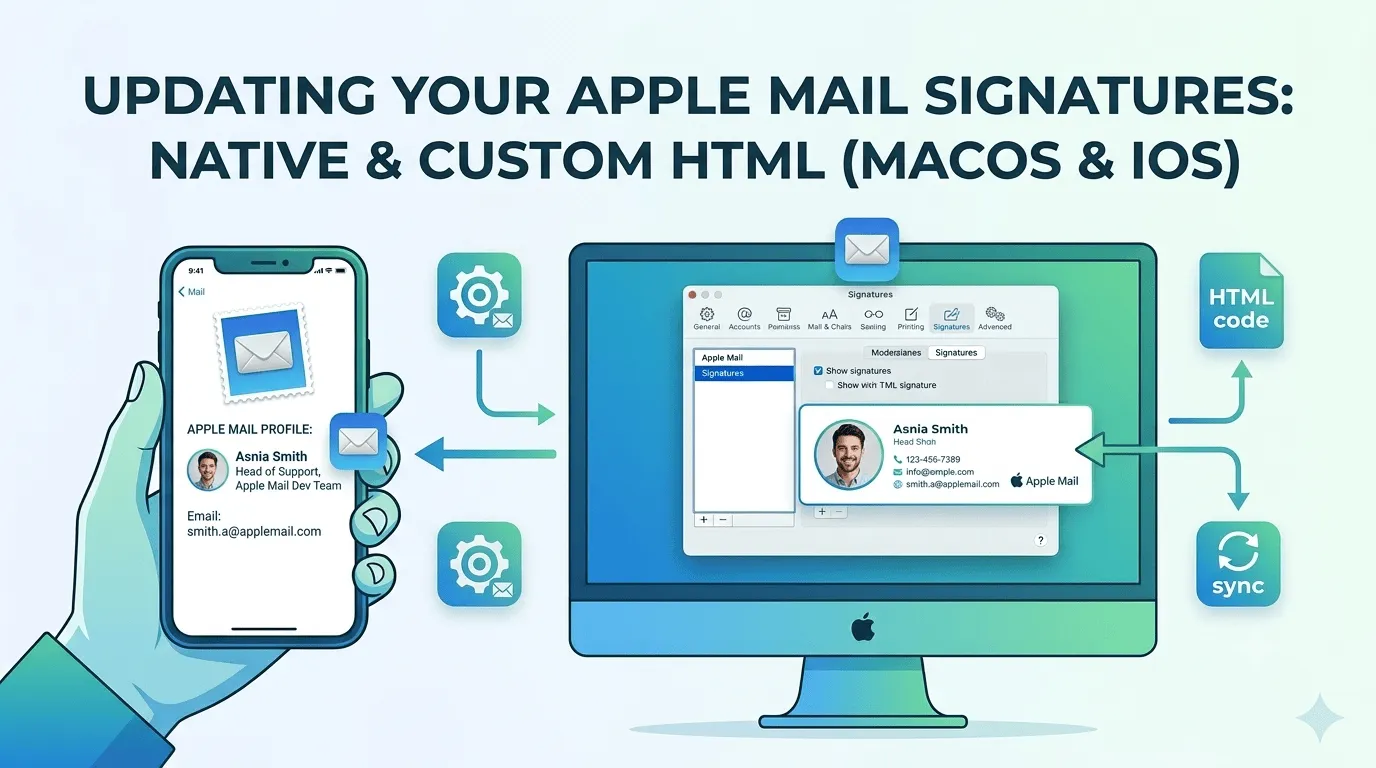
How To Setup A Custom Email Signature In Apple Mail
Updating your email signature is simple in some email clients and more difficult in others. Apple Mail is one that's on the more difficult side, especially if you want to implement a custom HTML signature. This article gives you step-by-step...
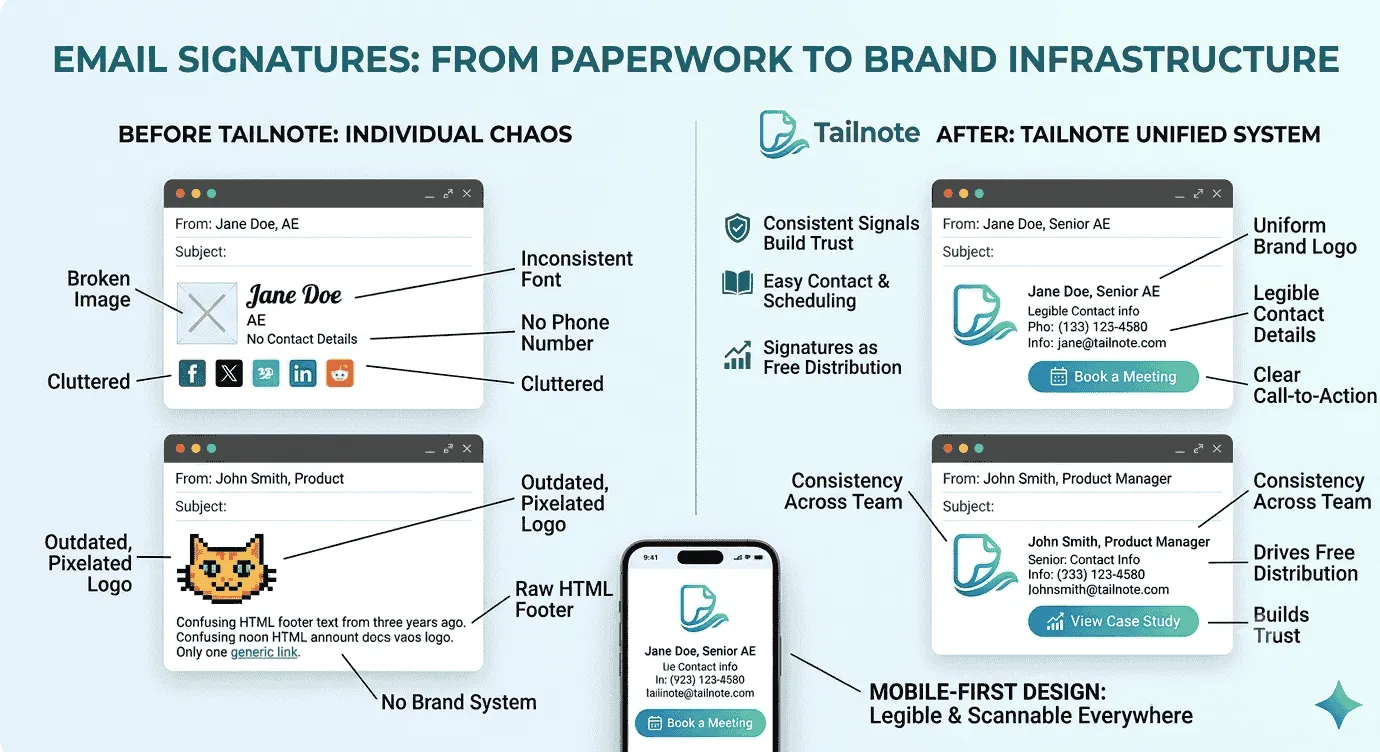
Why Email Signatures Matter More Than Most Teams Think
Every email is a tiny piece of your brand. It is a first impression, a trust signal, and sometimes the last thing someone reads before they decide whether to click, reply, or ignore you. Learn why email signatures matter more than you might think

The Tailnote Story
The story of how Tailnote came to be. From client frustrations to real-world validation and the struggles of building for legacy email clients.